Google Docs AI Off: Take Back Control of Your Writing
Users frustrated with Google Docs’ “Write with Gemini” pop-ups can disable the AI sidebar and smart features through settings in Docs and Google Workspace, restoring a cleaner, distraction-free writing experience.
Many users have expressed frustration with the omnipresent “write with Gemini” text box that now frequently appears when opening Google Docs.
This AI display can be intrusive and disrupt the writing process, leading users to seek methods for its removal.
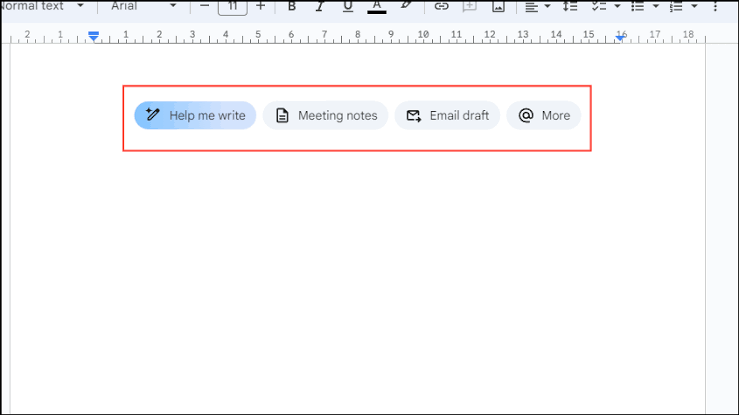
This guide will detail two primary ways to disable these persistent AI pop-ups, allowing for a more focused and uninterrupted writing experience.
The first method to address the immediate AI box at the bottom of your Google Docs screen is quite straightforward.
While in your Google Doc, locate and click on the “Gemini” option positioned on the top menu bar. A drop-down menu will appear; from this menu, select “bottom bar preferences.” Within this setting, you will find an option to turn off the bottom bar, which will effectively remove the “write with Gemini” AI box from the lower part of your screen.
It is worth noting that initial attempts to dismiss these features might be met with some confusion. For instance, clicking “Ask something else” and prompting Gemini to remove itself from your workflow will likely prove unhelpful.
Gemini, exhibiting what might be described as a digital survival instinct, will typically suggest clicking the “X” icon. This action merely closes the current conversation with the AI, rather than permanently disabling the feature, a subtlety that can be quite irritating when one’s goal is complete removal.
Beyond the bottom bar pop-up, some Google Docs users have reported encountering other AI features, such as a “help me write” function that hovers over the cursor during typing.
To prevent such features from becoming a nuisance, a more comprehensive approach involves disabling “smart features” across your entire Google Workspace.
To implement this broader solution, begin by navigating to your Gmail inbox. Once there, locate and click the gear icon, which represents your Settings. From the initial settings menu, select “See all settings.”
On the subsequent page, scroll down approximately halfway until you find the section labeled “Google Workspace smart features.” Click on “Manage Workspace smart feature settings” within this section.
Here, you will be presented with two distinct toggles.
One option allows you to disable smart features specifically within Google Workspace applications, which includes the bothersome Gemini pop-ups in Google Docs. The second option pertains to other smart features, such as Gmail's automatic creation of calendar events for flights.
By toggling off the first option, you can ensure that annoying Gemini pop-ups no longer interrupt your writing process in Google Docs, allowing for peace of mind and an unobstructed digital workspace.