8 Things You Need to Delete From Your iPhone To Get Rid Of Full Storage
The things eating your iPhone storage are not the ones you can see. They are hiding in your iMessage threads, your WhatsApp groups, your Safari cache, and your voice memos. Here are eight things you should delete from your phone.
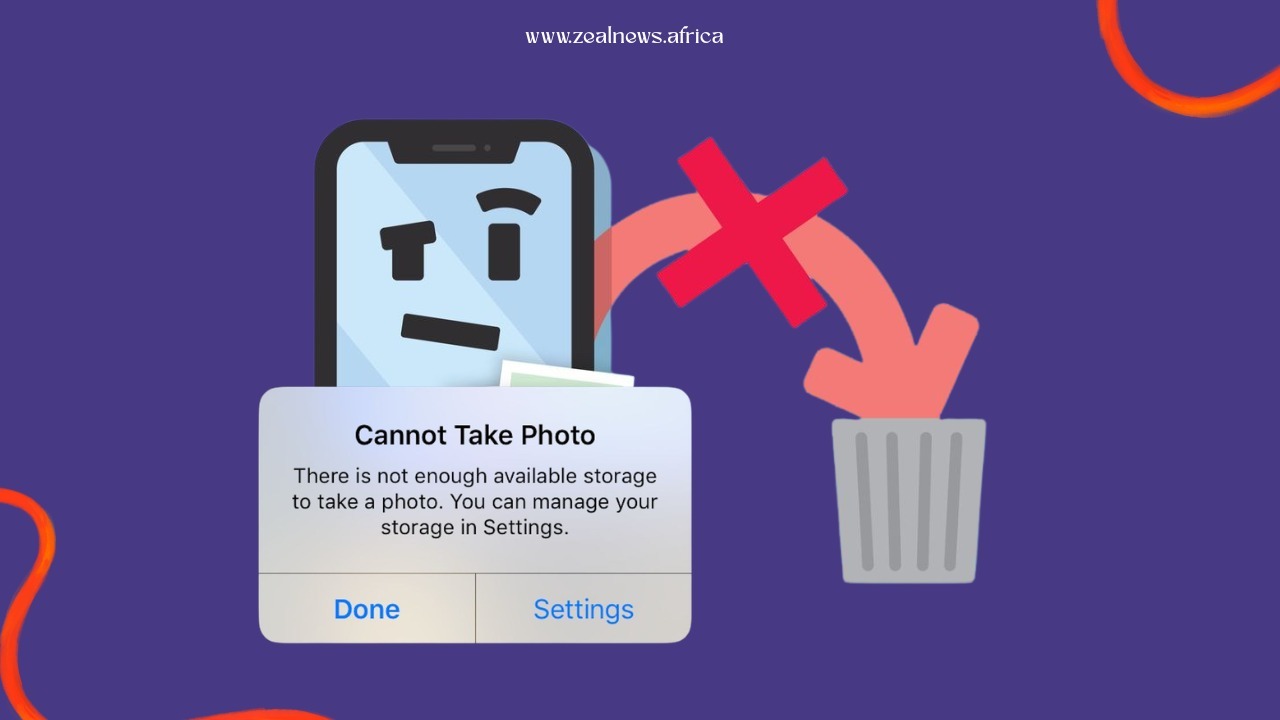
You are trying to take a photo and your iPhone tells you there is no storage left. You have deleted apps. You have cleared the obvious stuff. And somehow the storage bar is still stubbornly full, and your phone is moving like it has given up on life.
The problem is almost never what you think it is. The things eating your storage are not the things you can see. They are sitting quietly in your messages, your browser, your WhatsApp groups, and your voice memos, accumulating silently for years while you blame your photos.
Here is exactly what to do, step by step, in order of impact.
1. Reset All Settings
Before anything else, start here. Resetting all settings clears a surprising amount of invisible clutter: cached configurations, system data, and accumulated junk that you cannot access manually.
The important thing to know is that this does not delete your photos, contacts, or personal data. It resets your system preferences, not your life.
Go to Settings, then General, then Transfer or Reset iPhone, then Reset, then Reset All Settings.
Do this first. It takes two minutes and it often frees up more space than people expect.
2. Delete Your iMessages
This is the one most people completely overlook. Text messages by themselves take almost no space. But the photos, videos, voice notes, stickers, GIFs, and file attachments that have been building up inside your iMessage threads since the day you got the phone? Those are a different story entirely.
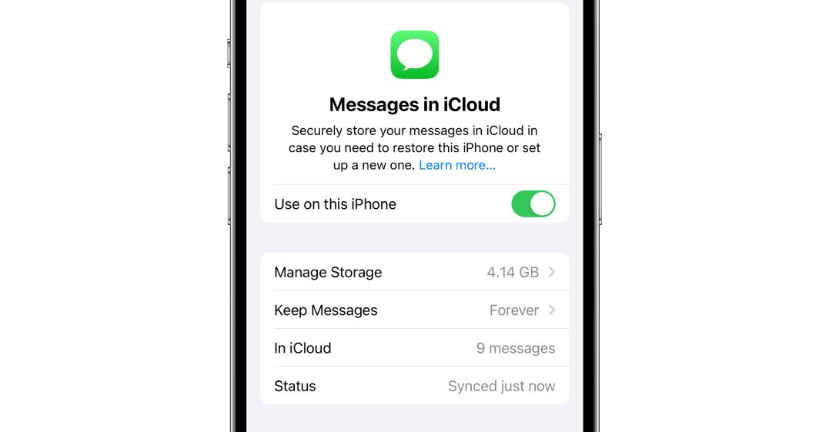
If you have been using the same Apple ID for several years, your iMessage history is likely one of the biggest storage drains on your device and you have probably never once opened it with the intention of clearing it.
Open the Messages app, tap Edit, and go through your threads. Delete the heavy ones. Group chats are usually the worst offenders.
3. Set Messages to Auto-Delete
If manually clearing iMessages feels like too much work, automate it. You can set your iPhone to automatically delete messages after 30 days, which means the problem stops accumulating going forward without you having to think about it.
Go to Settings, then Messages, then Keep Messages, and change it from Forever to 30 Days.
This will not solve what has already built up but it stops the bleeding immediately.
4. Go Through Your Apps and Delete the Ones You Never Open
Everyone has apps they downloaded once for a specific reason and never opened again. A parking app from a trip two years ago. A food delivery service you tried once. A meditation app someone recommended that you opened exactly one time.
Social Insight
Navigate the Rhythms of African Communities
Bold Conversations. Real Impact. True Narratives.
Those apps are sitting on your phone taking up space and sometimes running background processes you are not aware of.
Go to Settings, then General, then iPhone Storage. Your phone will show you every app ranked by how much space it is using. Scroll through it honestly and delete anything you have not touched in the last three months.
5. Clear Your Safari Cache
Every website you visit in Safari leaves behind cached data, images, scripts, and files that are stored on your phone to make future visits faster. In theory this is helpful. In practice, after months or years of browsing, it becomes a significant storage drain.
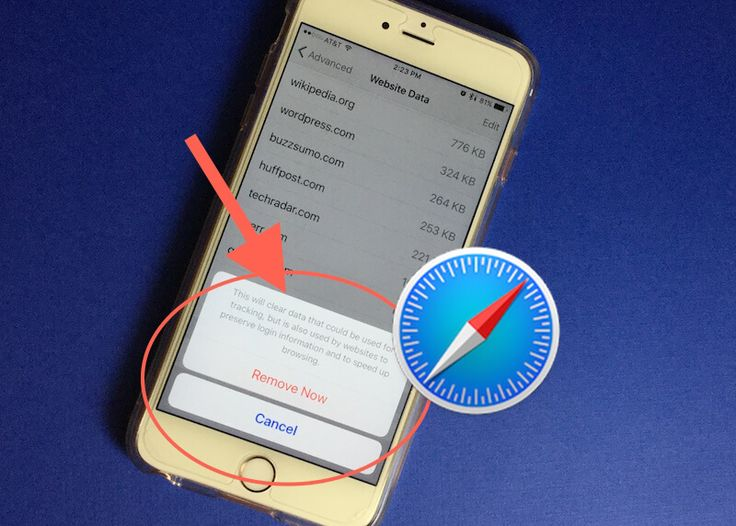
Go to Settings, then Apps, then Safari, then Clear History and Website Data.
If you use Chrome or any other browser on your iPhone, clear the cache in that app as well. The process is similar and the storage savings add up quickly when you do all of them at once.
6. Sort Out WhatsApp

WhatsApp is one of the most aggressive storage consumers on any phone and most people have no idea how much space it is using. The problem is the auto-download setting, which means every photo, video, voice note, and document sent to any group you are in gets saved to your phone automatically whether you want it or not.
Nigerian WhatsApp groups specifically are a particular hazard. Between the good morning messages, the news clips, the voice notes, and the videos, a busy group chat can consume gigabytes in a matter of weeks.
Go into WhatsApp, then Settings, then Storage and Data, then Media Auto-Download, and set everything to Never. Then go into Storage and Data and clear the media from your heaviest group chats individually.
7. Find and Delete Duplicate Photos and Videos
When you take a burst of photos trying to get the right shot, your phone saves all of them. When you screenshot something and also save it, you have two copies. When you receive a photo on WhatsApp and it also saves to your camera roll, you have duplicates everywhere.
iPhones now have a built-in tool that finds these for you. Go to the Photos app, tap Collections, scroll down to Utilities, and select Duplicates. Your phone will show you identical or near-identical files and give you the option to merge or delete them. On a phone that has been in use for a few years, this alone can free up several gigabytes.
8. Delete Old Voice Memos
Voice memos are the storage item nobody thinks about until they go looking. Audio files are heavy. A long voice recording can be several hundred megabytes on its own. And most people have a graveyard of old voice memos sitting in the Voice Memos app that they recorded once and never needed again.
Open the Voice Memos app, go to All Recordings, and delete everything that is not actively useful to you. Be ruthless. If you cannot remember what it is for, it can go.
Conclusion
Storage problems on iPhones are almost always solved by the same combination of things: clearing message histories, turning off WhatsApp auto-downloads, deleting duplicate media, and clearing browser caches.
Work through this list in order and check your storage after each step. By the time you finish, you will almost certainly have recovered more space than you expected and your phone will move noticeably faster for it.